 Sticker Canvas
Every picture starts as a pile of pieces.
Pick a picture, then stick every piece back where it belongs. Drag a piece onto its numbered outline and it clicks into place.
A calm break that fits in your pocket
A picture takes only a few minutes, so it fits a coffee break, a commute or a quiet evening. Nothing to lose: place a piece, hear it click, enjoy.
Drag and click into place
Drag a piece from the tray onto its numbered outline, or tap a piece and then tap its spot.
Zoom in for the tiny ones
Pinch to zoom and drag to move around the picture, so even the smallest pieces are easy to place.
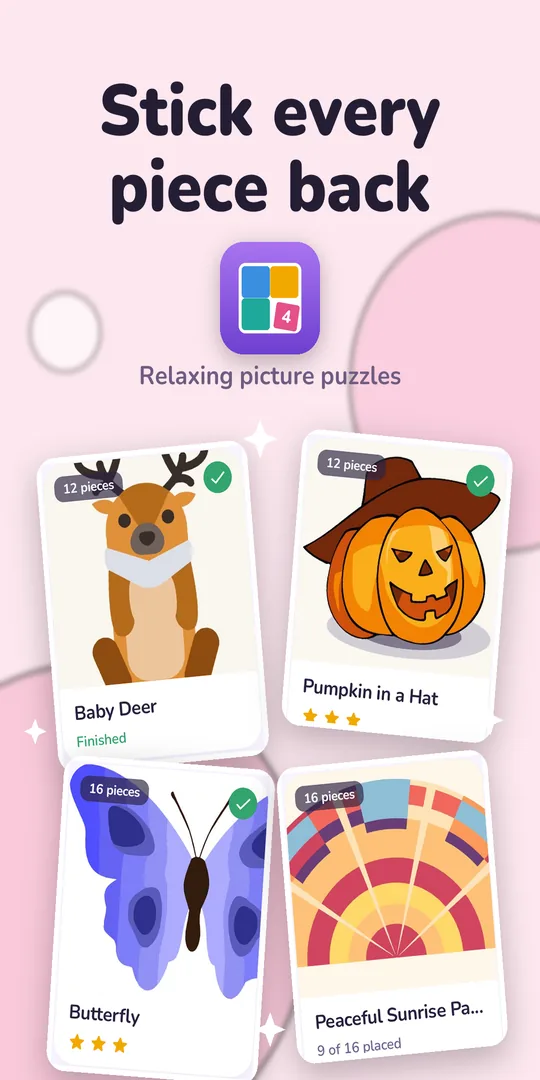
30 pictures to rebuild
From simple shapes to detailed scenes, and an album that keeps every picture you finish.
See it in action
Real screens from the game: the picture list, a puzzle in progress and a finished picture.
Choose a picture, a mode and how many pieces
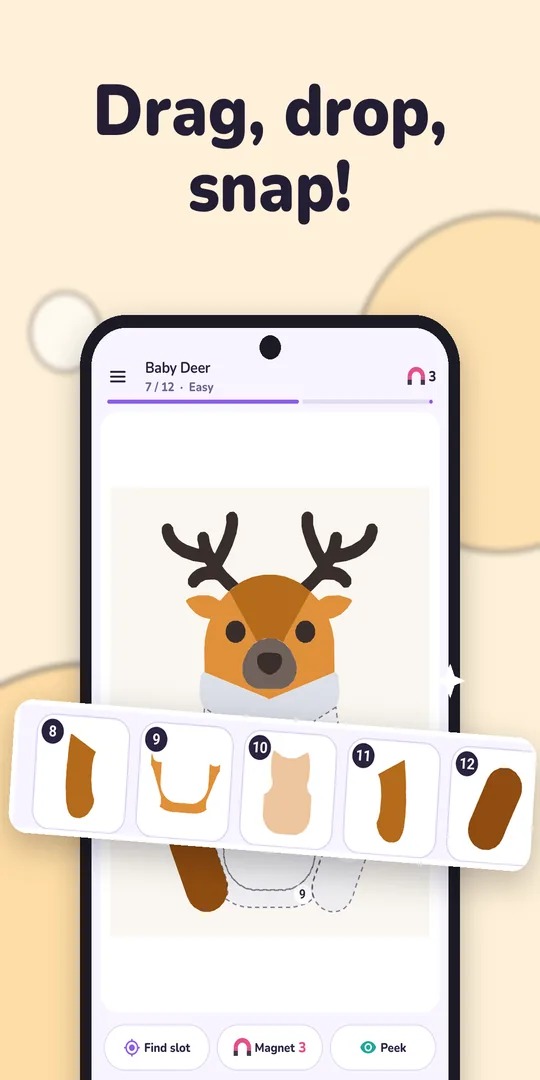
Drag each piece to its numbered outline
Finish and add the picture to your album
Pinch to zoom, so small pieces are easy to place
Made for a relaxed pace
Gentle by default, with more challenge when you want it.
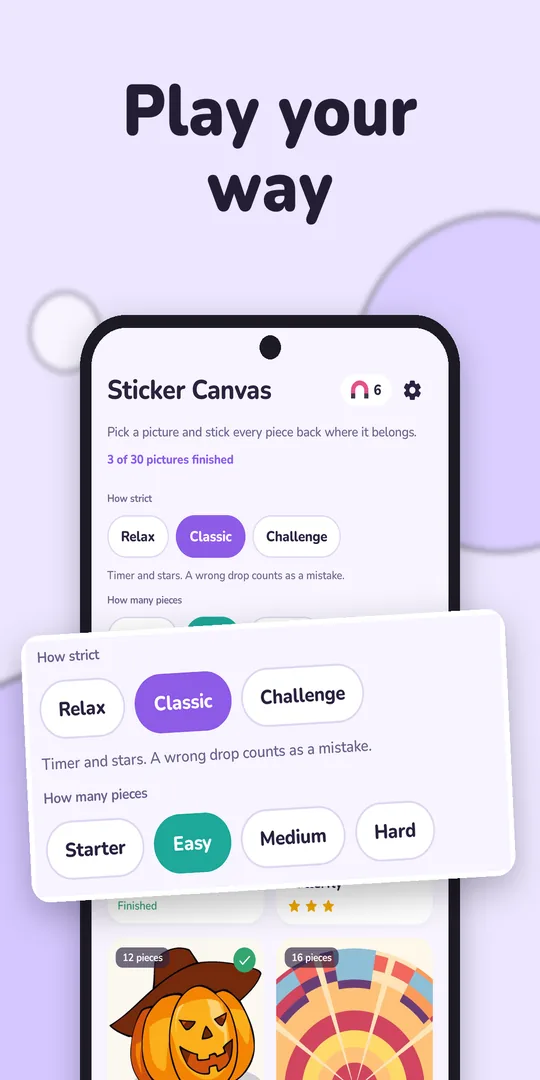
Relax, Classic, Challenge
Three modes from no-pressure to tilted pieces and tight snapping.
Starter to Hard
Choose how many pieces each picture is cut into, from Starter up to Hard.
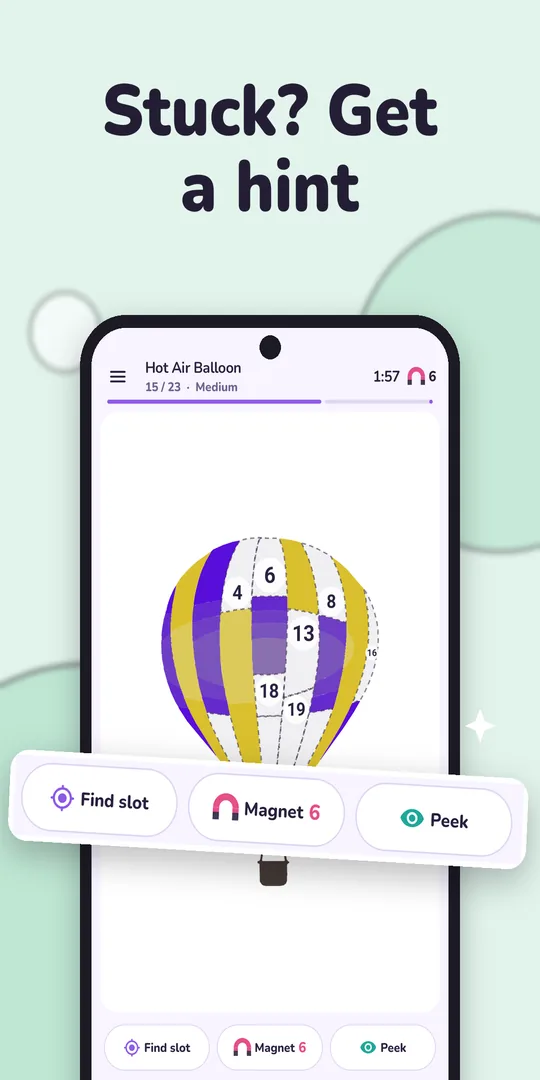
Find slot, Magnet, Peek
Stuck? See where a piece goes, let a Magnet place it for you, or peek at the finished picture.
A picture album
Every picture you finish is kept in your album, so you can look back at what you have rebuilt.
Little hands mode
The most forgiving snapping, no timer and no mistakes. You can also set snap assist from tight to generous.
Progress is saved
Leave in the middle of a picture and come back later. Your progress is saved as you go.
Sound and vibration
A satisfying click when a piece lands. Switch sound effects and vibration off any time.
Plays offline
Every picture is already on your phone, so you can play anywhere.
No account
Open the app and start sticking. There is nothing to sign up for.
How to play
Four steps from a pile of pieces to a finished picture.
Pick a picture
Choose a picture, a mode and how many pieces you want.
Drag a piece
Take a piece from the tray, or tap it to select it.
Stick it down
Drop it on its numbered outline and it clicks into place.
Complete the picture
Place every piece, earn your stars and a magnet, and add the picture to your album.
You choose how strict to be
Same pictures, three ways to play. Pick the pace that suits the moment, and set how many pieces you want to place.
Relax
No timer, no mistakes and extra-wide snapping, for pure calm.
Classic
A timer and stars, and a wrong drop counts as a mistake.
Challenge
Pieces arrive tilted, so turn them upright first. Snapping is tight. Opens after you finish 3 pictures.
Free to play
Sticker Canvas costs nothing to download or play.
Sticker Canvas on Android
- No account and no sign-up
- Every picture is on your phone and plays offline
- An occasional ad after you finish a picture
- Where required, such as in the EEA and UK, the app asks for your ad choices first and lets you change them in Settings
Questions, answered
Something else? Send a message from the support page.
Is Sticker Canvas free?
Yes. It is free to download and play, with an occasional ad after you finish a picture.
Do I need an internet connection?
No. Every picture is already on your phone, so you can play offline. Ads can only appear when you are online.
Do I need an account?
No. Open the app and start sticking.
What is the difference between the modes?
Relax has no timer, no mistakes and extra-wide snapping. Classic adds a timer and stars, and a wrong drop counts as a mistake. Challenge sends pieces tilted so you turn them upright first, with tight snapping.
How do I unlock Challenge mode?
Finish 3 pictures and Challenge opens up.
What are Find slot, Magnet and Peek?
Find slot shows where a piece goes. A Magnet places a piece for you, and you earn one by finishing a picture. Peek shows the finished picture.
What is Little hands mode?
A setting for the gentlest, easiest game: the widest snap, no timer and no mistakes. You can also set the snap assist anywhere from tight to generous.
Is my progress saved?
Yes. Leave mid-picture and come back later. Finished pictures are kept in your album.
How do I send feedback or report a problem?
Use the support page linked below and tell us which pictures you would like to see next.
What about my data and ads?
The app shows ads through ad partners and asks for your consent where the law requires it. The privacy policy explains exactly what is processed.